No more font or formatting problems after edits

Sign a PDF with a photo of your signature

Sign a sheet of paper, take a photo, and put that signature on the PDF — only the ink, without the paper.

Choose a PDF

or drop it here · up to 20 MB and 50 pages

No file at hand? Try:Application formContract

How to sign with a photo

A signature photographed on paper, put on a form.

A frame is drawn round the signature in the photo; the paper disappears and only the blue ink remains
  1. Open the photo

    Press Sign on the left. On the Photo tab choose a photo of your signature — or paste one with Ctrl+V.
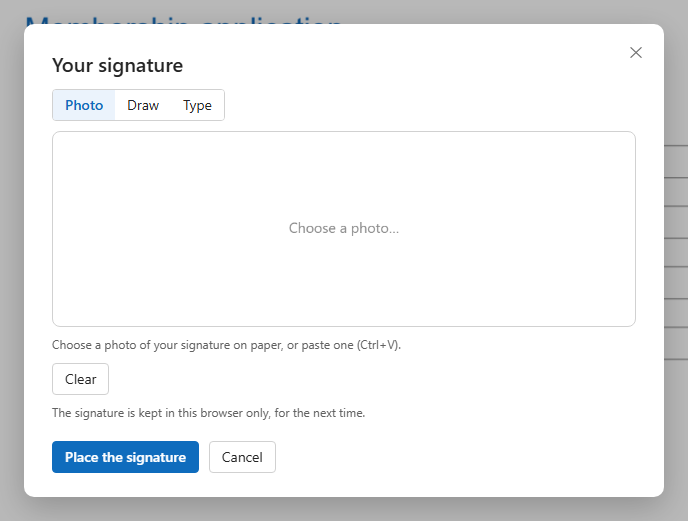
    The signature window on the Photo tab
  2. Draw a frame round the signature

    Drag a frame round it: only what is inside is looked at. Or press Find it for me to search the whole photo.
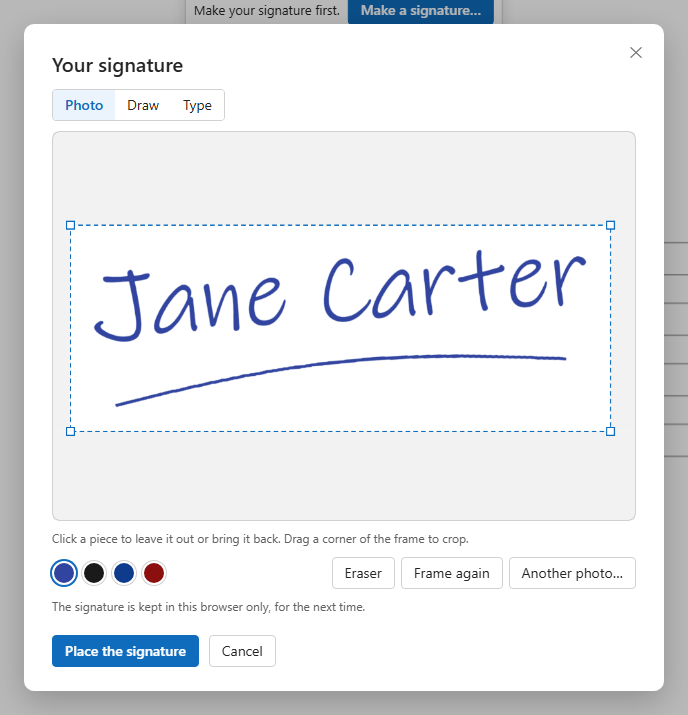
    The photo with a frame drawn round the signature
  3. Check what was found

    The paper is gone; the ink stays. Click a piece to leave it out or bring it back, use the eraser for specks, drag a corner to crop. The ink can stay as in the photo, or be black, blue or red.
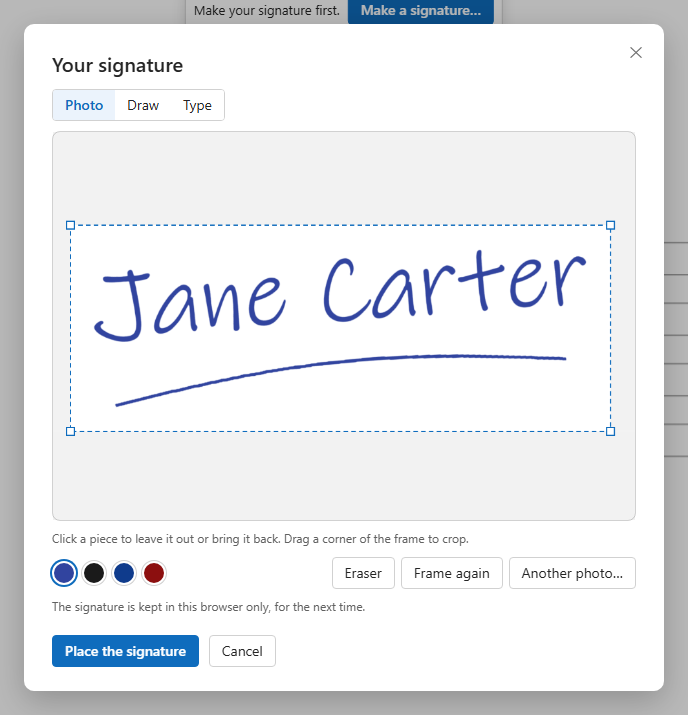
    The signature taken out of the paper, with the eraser, crop and colours
  4. Place it

    Press Place the signature and click the signature line. Move, resize or turn it, then download.

    The photographed signature on the form, without the paper

How the ink is taken out of the paper

A photo of paper is never white: it has shade, a tint from the lamp, the grain of the sheet. Cutting the signature out by brightness leaves grey blotches and a ragged edge. Seamtype looks at the paper around every stroke.

The signature found in the photo
  1. The paper under each stroke

    The shade of the paper is worked out under the ink itself, so a shadow across the sheet does not become part of the signature.

  2. Soft edges, thin tails

    How much a point is ink depends on how much darker it is than the paper under it: edges stay smooth, and a faint tail of a stroke is kept.

  3. Only the signature

    The edge of the sheet, a pencil line, a printed line and shadows are told apart from the pen's strokes and left out.

  4. The colour of your pen

    The ink colour is taken from the middle of the strokes and corrected for the tint of the paper — or you pick black, blue or red.

What you get

Your own handwriting

The signature you sign on paper, not a typed imitation.

No paper, no box

Only the ink lands on the page.

Any phone photo

JPEG, PNG or WebP, turned the right way up by itself.

Clean-up tools

Leave out pieces, erase specks, crop.

Kept for the next time

In this browser only; no upload to keep it.

Move, size, turn

After placing, as with any signature.

Good to know

For a clean result

Sign with a dark pen on plain white paper, in daylight, and hold the phone straight above the sheet.

A picture, not a certificate

This is a signature as on paper, not a digital (certificate) signature.

The photo itself

The photo is sent to our server to find the ink, and the signature comes back; the signature is then kept in your browser.

Questions

How do I make my signature transparent?

Open the photo on the Photo tab and frame the signature: the paper becomes transparent and only the ink stays.

The photo has a shadow across it. Will it work?

Usually yes: the paper's shade is measured under each stroke. If a piece of shadow remains, click it to leave it out.

Can I use the signature in other documents?

Yes. It is kept in this browser, ready for the next PDF.

Other tools