No more font or formatting problems after edits
Drag across words to highlight, underline or strike them out. Add notes, drawings and shapes.

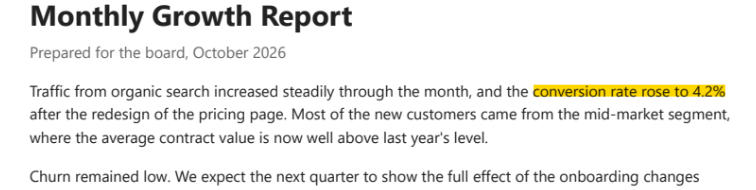
A figure in a report highlighted in yellow.
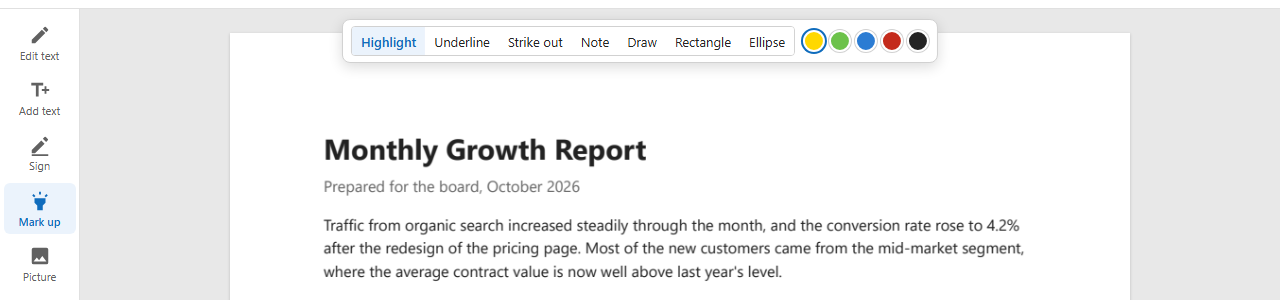
Press Mark up on the left. Above the page choose what to do — Highlight, Underline, Strike out, Note, Draw, Rectangle, Ellipse — and the colour.
The words are picked line by line as you drag, like selecting text in a document. Let go, and they are marked.
Markup goes on the page as standard PDF annotations: the same kind that Acrobat and the browsers' PDF viewers make and show.

Highlights, underlines and strike-outs follow the lines of text you drag across, even across several lines.
Every PDF reader shows the markup; a reader that knows annotations can list, change or remove it.
The document's text is not touched: markup lies on top of it and can be taken off.
Five colours; for lines and shapes a thickness, and for underlines solid, dashed, dotted, wavy or double.
Fitted to the words you pick.
Click where the note goes and write it.
Freehand with the mouse, a pen or a finger.
To frame a figure or a part of a drawing.
Click a markup to change it.
Shown in Acrobat, Chrome, Edge, Preview.
A scan has no text to pick: use a rectangle or a drawing to mark it.
Click it and press Delete, or the Delete button by it.
To change the text itself rather than mark it, use Edit text.
Yes. They are standard PDF annotations, shown by Adobe Reader and every other PDF reader.
Yes: yellow, green, blue, red or black, picked above the page.
Yes: choose Note, click where it goes and type. Readers show it as a note icon with your text.