No more font or formatting problems after edits
Click where the text goes and type. It takes the font, size and colour of the text nearby, so it looks as if it had always been there.
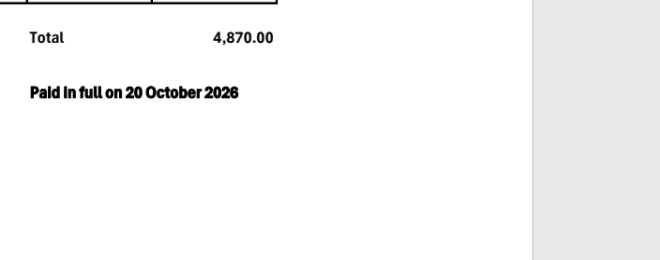
A line added under the total of an invoice.

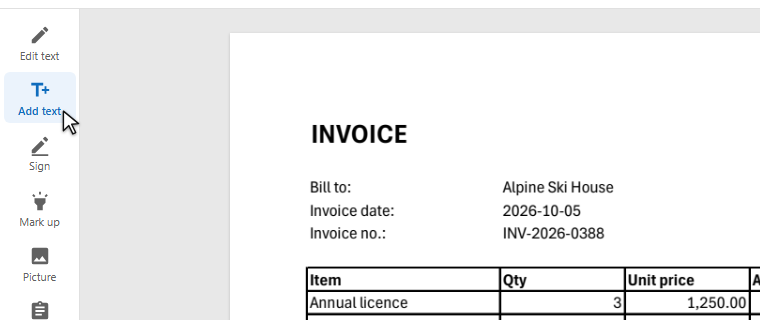
Open the PDF and press Add text on the left.
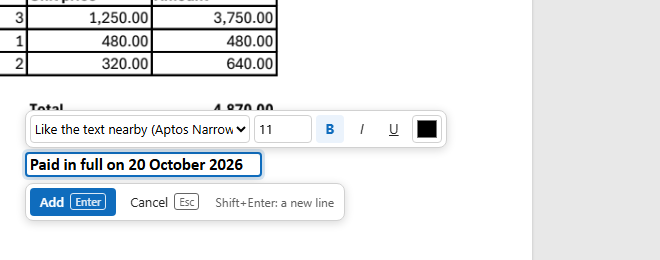
A field opens at that place, already in the style of the nearest line. Change the font, size, bold, italic, underline or colour above the field if you want another look. Shift+Enter starts a new line.
Press Enter or Add. The text is now part of the page.
A text box from an annotation tool floats over the page and rarely looks like the document. Seamtype writes the new words into the page itself, in the document's style.

The font, size and colour come from the line nearest to where you click. Near the left edge of a line, the new text lines up with it.
The words become text of the page: they can be found, selected and copied like the rest, in any PDF reader.
The text is set in the typeface of the line nearby. If that typeface is not available, a close one of the same kind is used — with serifs, without, or monospaced — and you can pick another from the list.
Added text is edited like any other line: click it and type.
Same font, size and colour as the text around it.
Real text: found by search and copied by readers.
Write on a flat form: names, dates, amounts.
Shift+Enter for a new line; they keep the line spacing.
Font, size, bold, italic, underline and colour above the field.
In the browser, on a computer or a phone.
If the form has fields to fill in, Fill form puts the values into them instead.
Text can be added to a scan too: it takes a font from the list, as there is no text nearby to copy.
To change existing words rather than add new ones, click them with Edit text.
Click next to the text you want it to match: the new text takes that line's font, size and colour.
Yes. It is written into the page, so every reader shows it, and it can be searched and copied.
Yes: with Edit text, drag the line by its handle to move it.